 Product
We have rebranded! ReConvert is now Upsell.com
ReConvert has officially become Upsell.com. Here’s what’s changed, what stays the same, and what this means for your Shopify store.
Without data, making improvements to your Shopify store is like playing pin the tail on the donkey.
Thankfully, Google Analytics is one of the most powerful (and free) ways to measure several eCom performance metrics.
Done right, a Shopify Google Analytics integration allows you to learn more about your customer’s browsing behavior, discover their shopping habits, adjust your website to make more sales, and more.
However, Google Analytics isn’t the most intuitive platform out there. If you’re new to ecommerce, it can be somewhat tricky to master.
In this guide, we’ll show you how to add google analytics to your store and how to get started using it to improve your shopping experience and drive more revenue.
Let’s not mess around!
If you owned a physical store, you could observe your customer’s in action. You could interact with them and learn about their motivations, figure out what products they like, and so forth.
Online this isn’t the case. That’s why collecting data and studying relevant KPIs is the digital replacement for this traditional owner/customer interaction.
Data can help you analyze gaps in your ecom sales funnel, build a picture of how customers behave on your site, figure out your weak points, and optimize your store for conversions and sales.
While Shopify’s analytics are undoubtedly useful, Google Analytics packs more of a punch - plus, you’re going to need it if you’re thinking about running Google remarketing ads.
We’re going to cover two methods for connecting Google Analytics to Shopify:
If you’re just starting, we’d recommend going with the Classic method. It’s super easy, and you’ll be up and running in a couple of minutes.
Thankfully, Reconvert's Co-founder Ruth breaks down both methods in this short video:
And if you want step-by-step text instructions to go along with the video, you'll find them below (plus some bonus tips for how to get the most from your metrics near the end!)
This old school method of setting up Google Analytics won’t allow you to track things like app installs and downloads. But for 99% of Shopify stores, that’s not an issue since you probably only care about your website.
Here are four simple steps to get going:
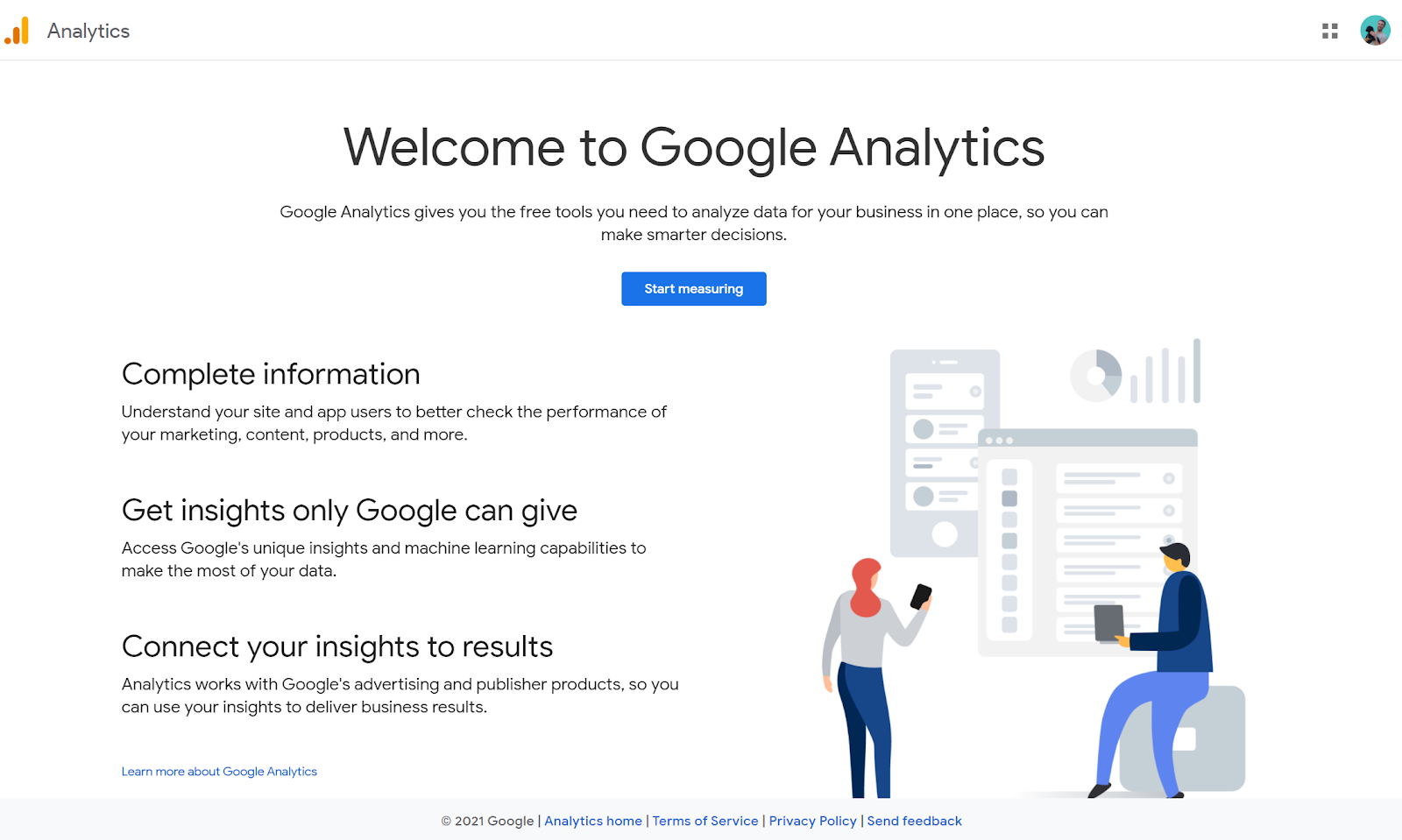
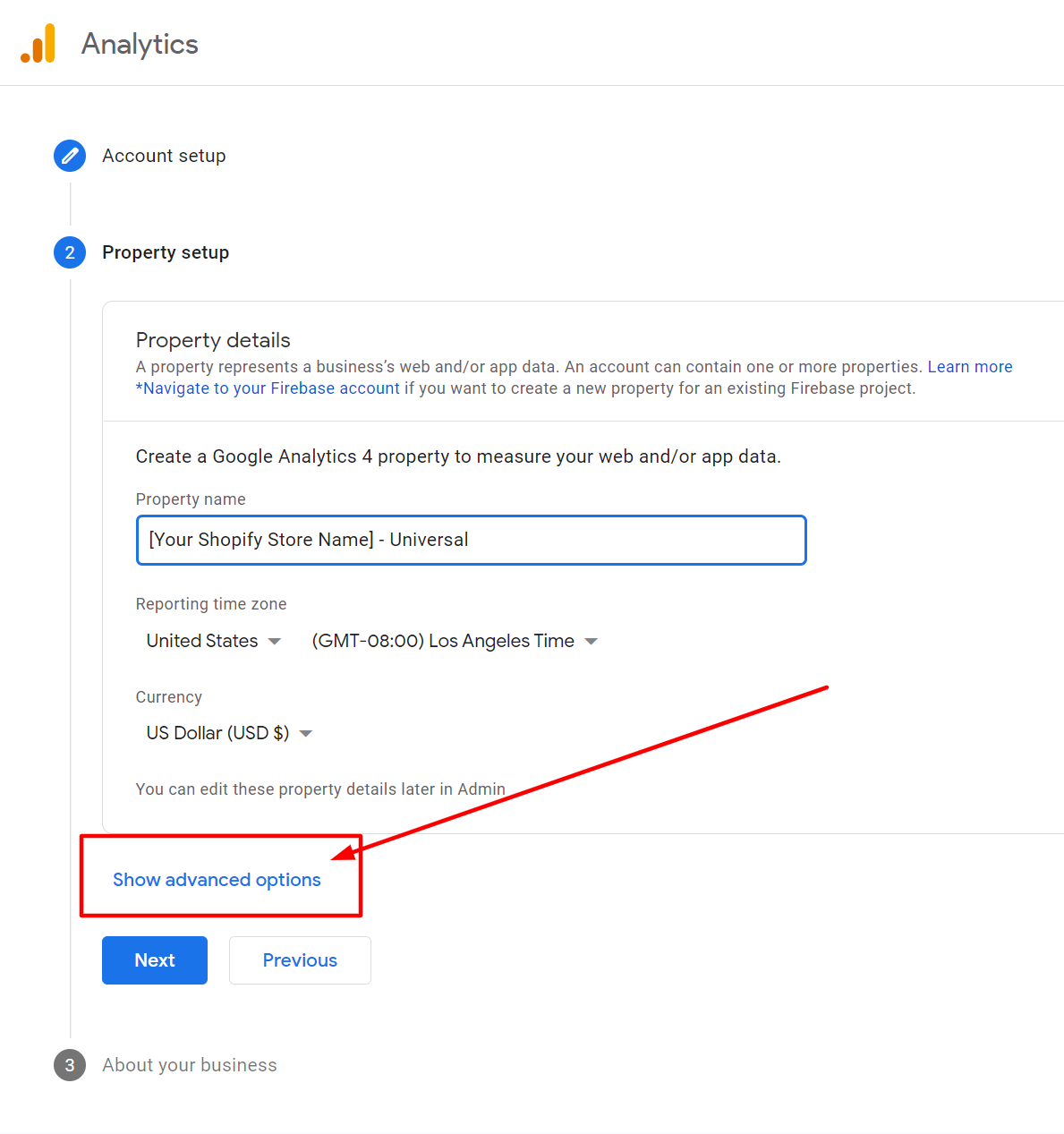


The last step is to make sure everything is working correctly.
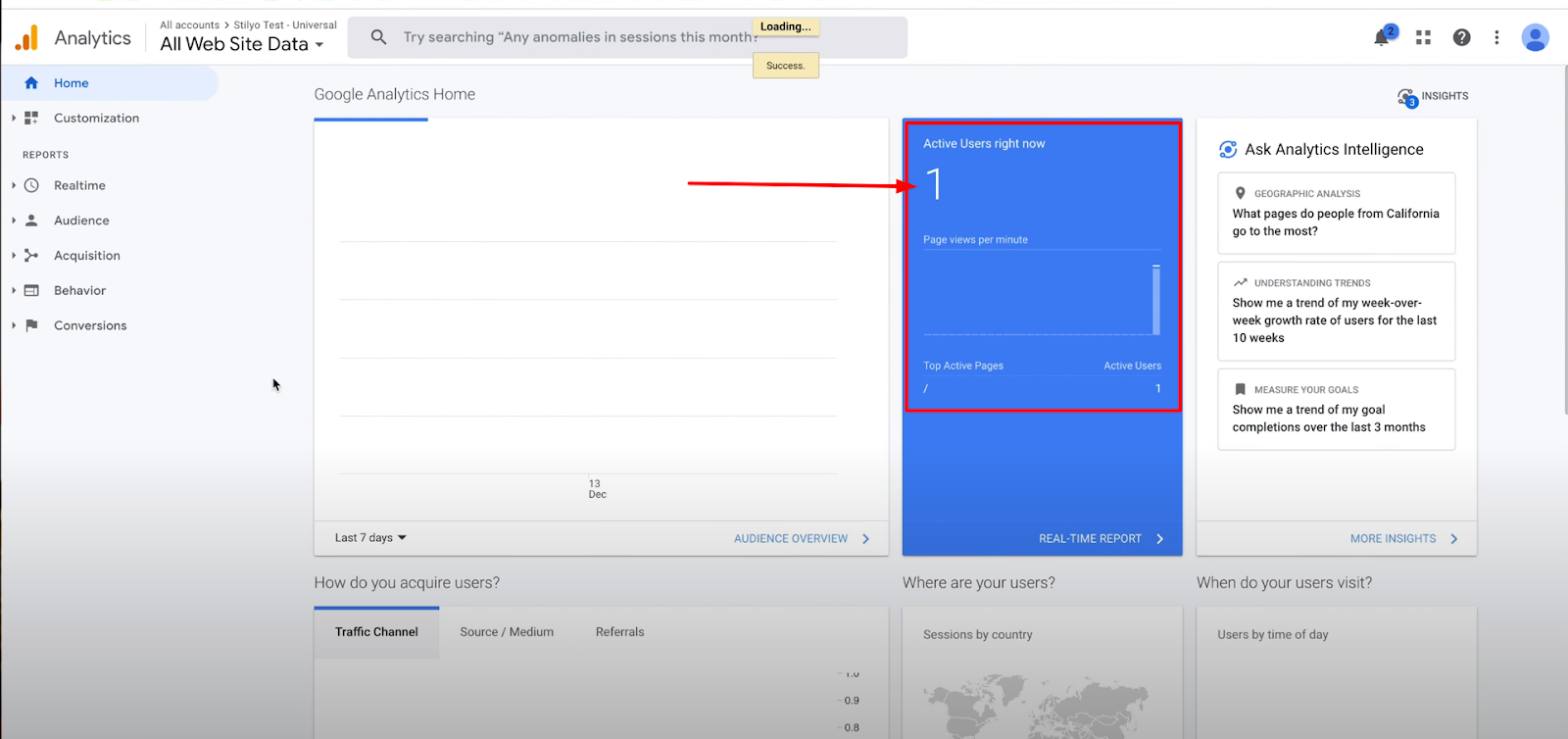
Congratulations! Your Google Analytics account is successfully integrated with your Shopify store!
The Global Tag (gtag) is the new method for integrating your Shopify store with Google Analytics.
Google introduced the global tag to make it easier to use your data across all of its services such as Analytics, Google tag manager, Adwords, Firebase, etc.
At the time of writing, Shopify doesn’t make it as easy to integrate using this method. However, It’s not very difficult.
So, if you want to go the global site tag route, here’s how:
The first thing you’ll need to do is remove any Universal Analytics codes you‘ve used previously. (if you haven’t used any skip to step two)

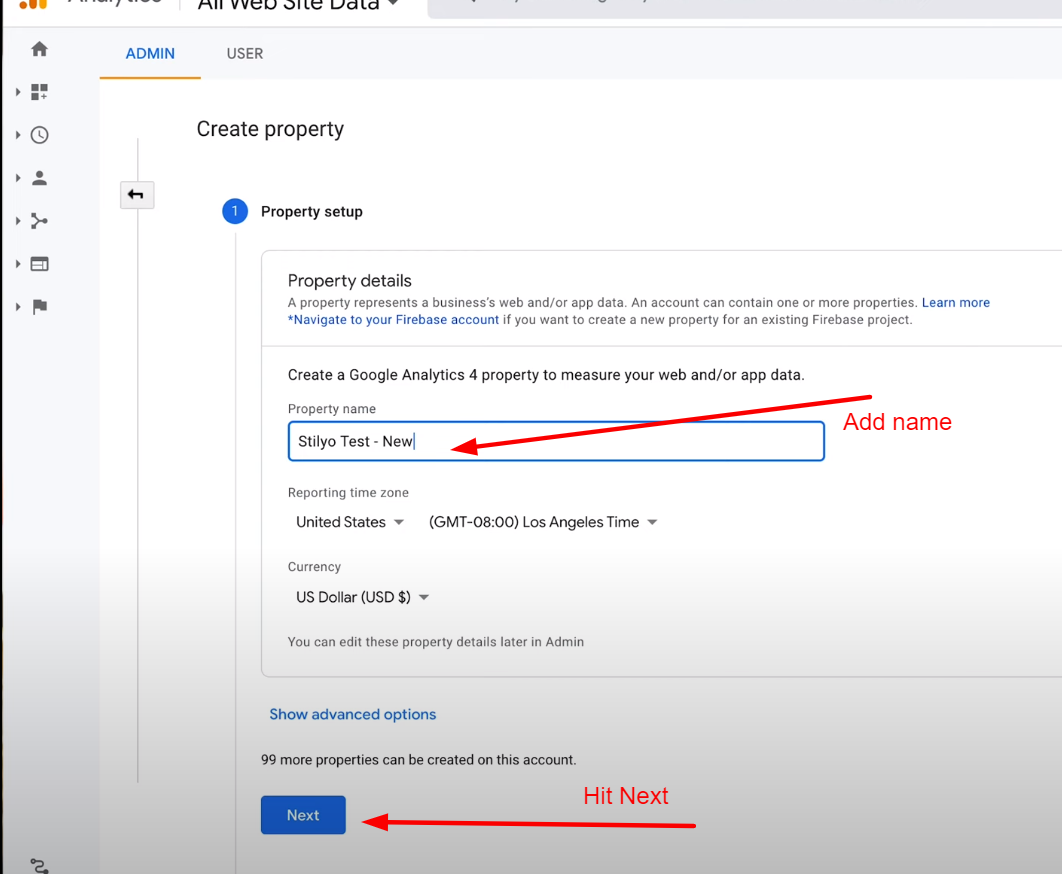
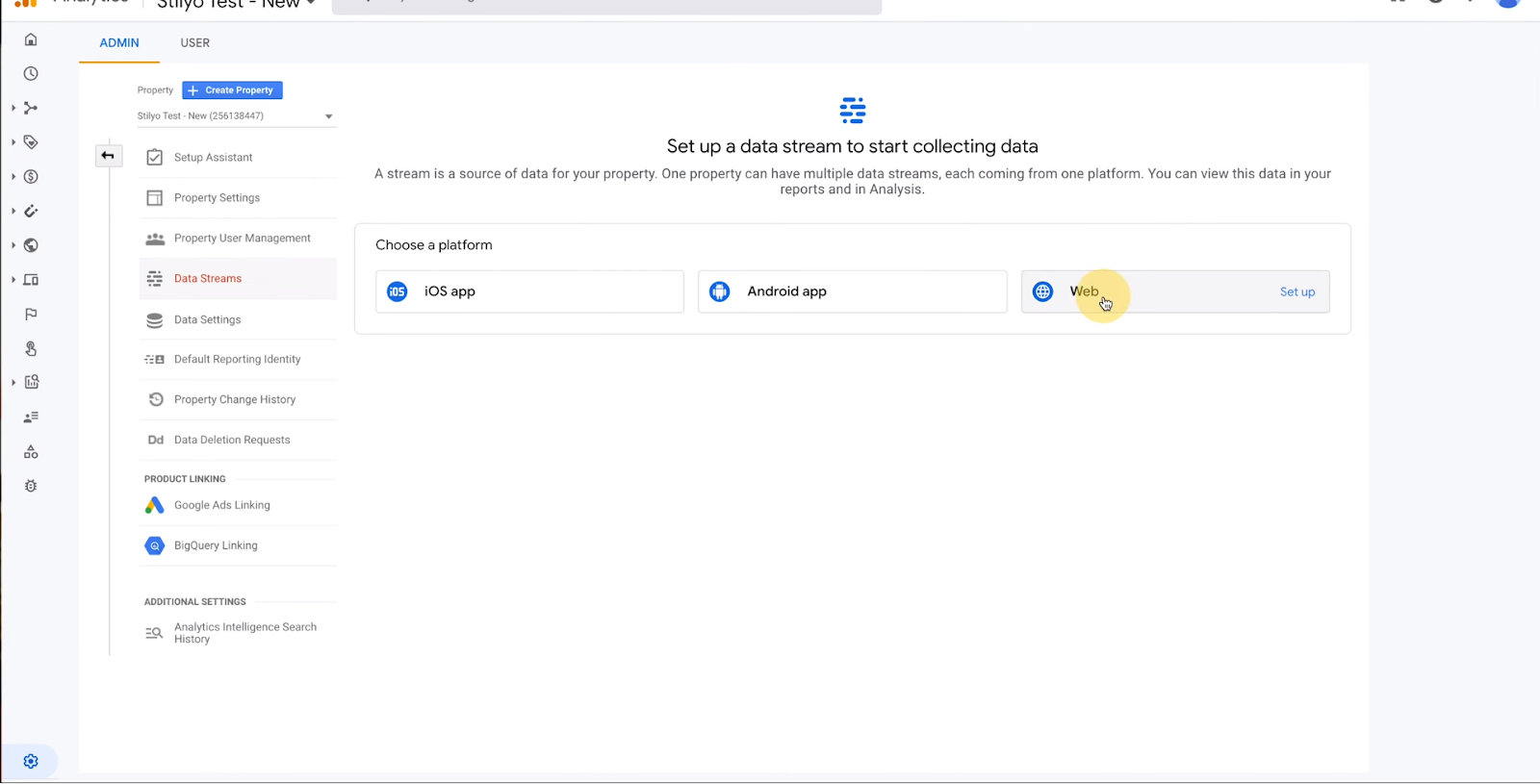

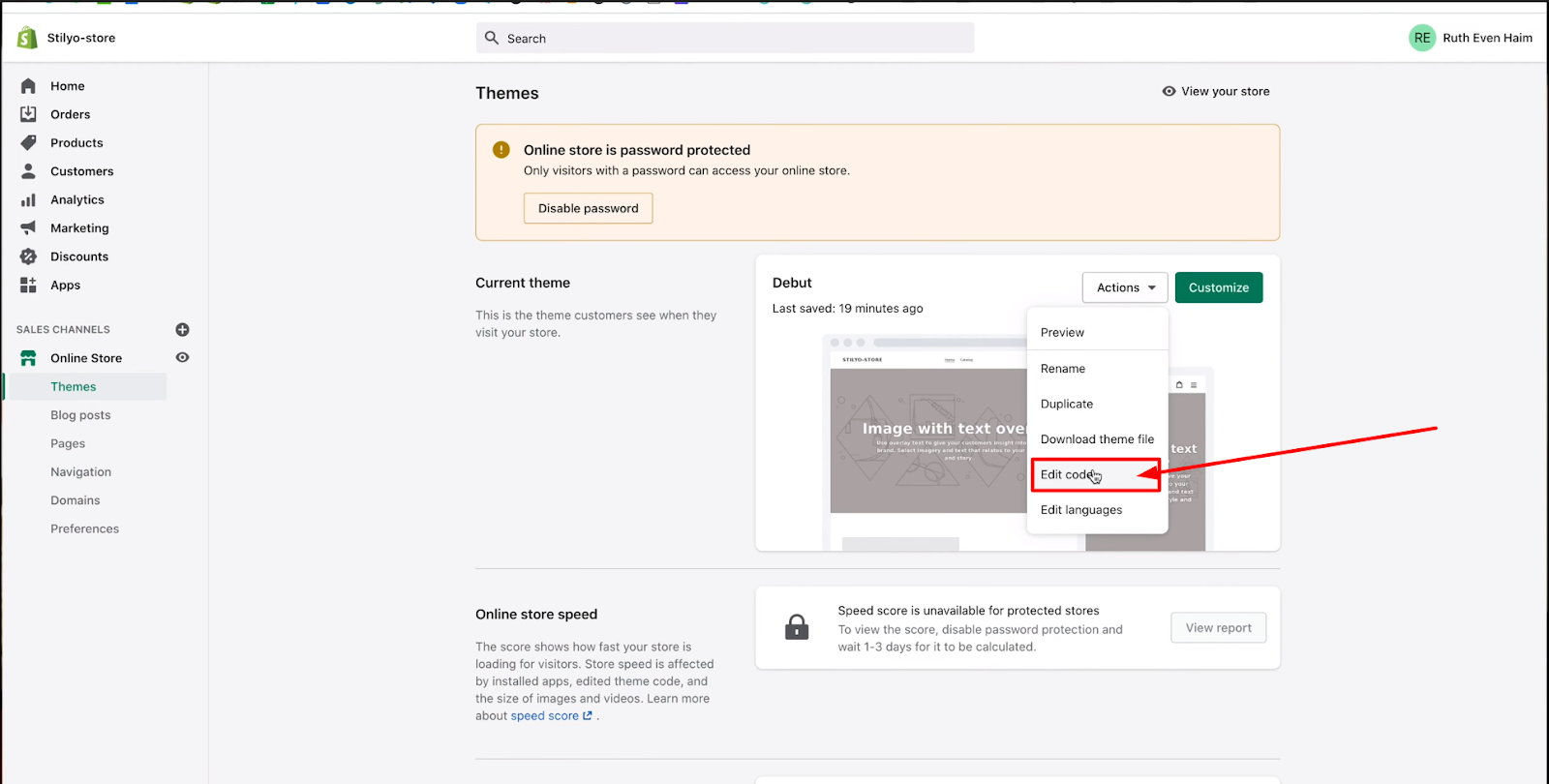
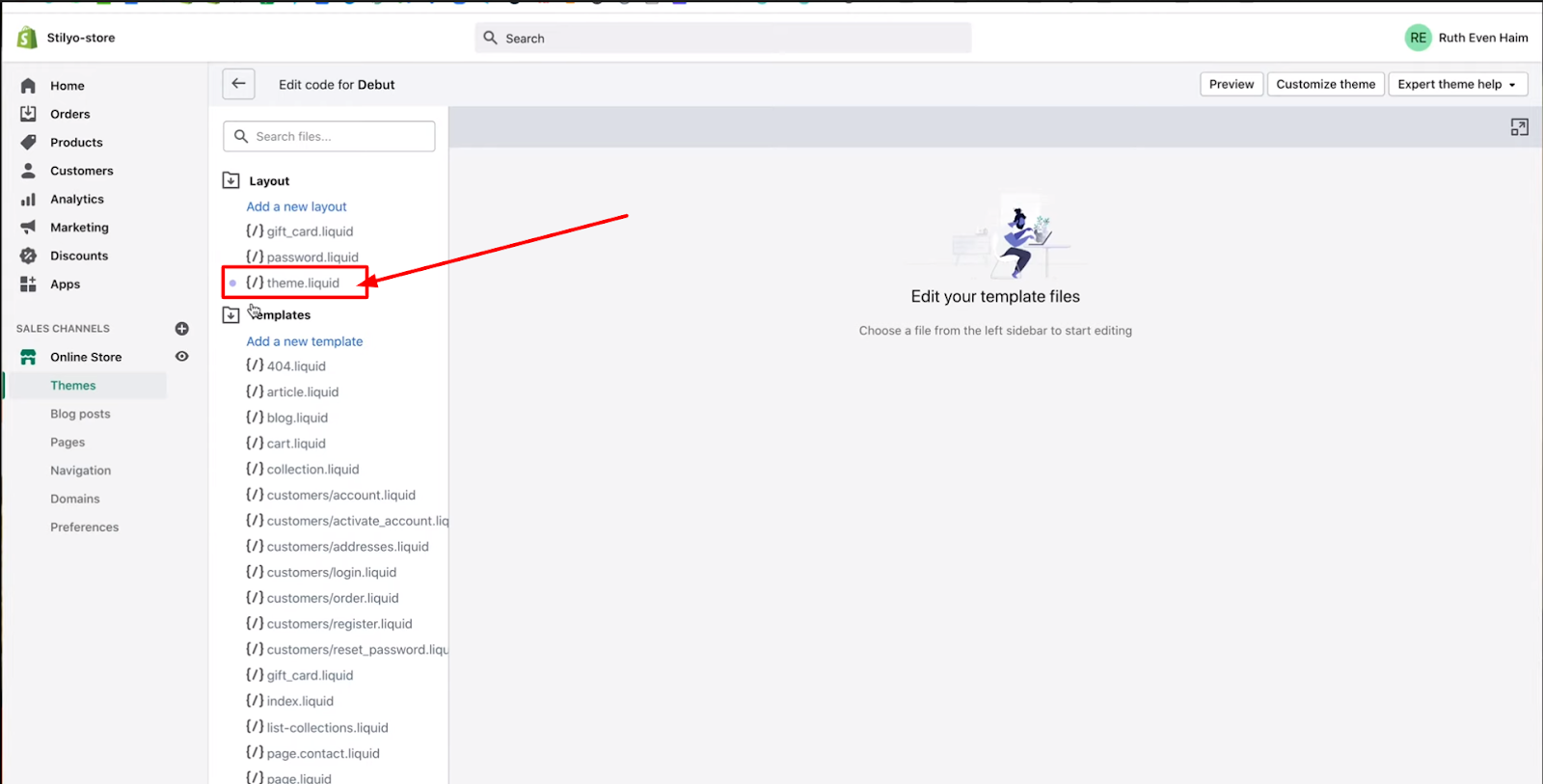
As you can see, Google requires that we add this code to the <head> of every page. While this sounds daunting, Shopify makes it pretty easy.
One word of caution for this step: if you’re running a store with traffic and customers, we recommend you don’t edit your ‘Live’ theme.
Instead, simply duplicate your theme and make edits to the code on the ‘unlive’ copy. This means it’s no biggie if things go awry.
With that in mind, let’s keep moving.
Upsell.com helps you increase AOV with targeted offers across the full shopping journey, from product and cart to checkout, post purchase, and beyond.

Sometimes the hierarchy of a Google Analytics account can get a bit confusing. Especially if you're new to it. So, here’s a quick run-through of the three tiers if you've been unsure so far.
Okay, once you’ve got your basic Shopify Google Analytics integration complete, it’s time to take it one step further by enabling ecommerce analytics.
This will allow you to track useful ecommerce-specific metrics like user data like purchases, popular products, and more.
Here’s how:
You’ll now be able to view ecommerce specific data by going to Conversions>Ecommerce>Overview.

Ok, so you’ve set up Google Analytics for Shopify. What’s next?
If you’re like most people, you probably feel a little overwhelmed by the sheer amount of data available to you in Google Analytics.
So let’s break down the fundamental reports you should use to improve your store:
Acquisition reports show you how visitors found you and arrived on your site.
Understanding how users came to your site is crucial because it sheds light on what marketing tactics work best for you.
For example, acquisition lets you determine which channel is:
The acquisition tab can also show you what domains link to your site and drive visitors via the ‘all referrals tab.’
You can use Acquisition data to inform your marketing strategy.
For example, suppose that...
Audience reports shed light on the demographics, interests, and some value of your store’s visitors.
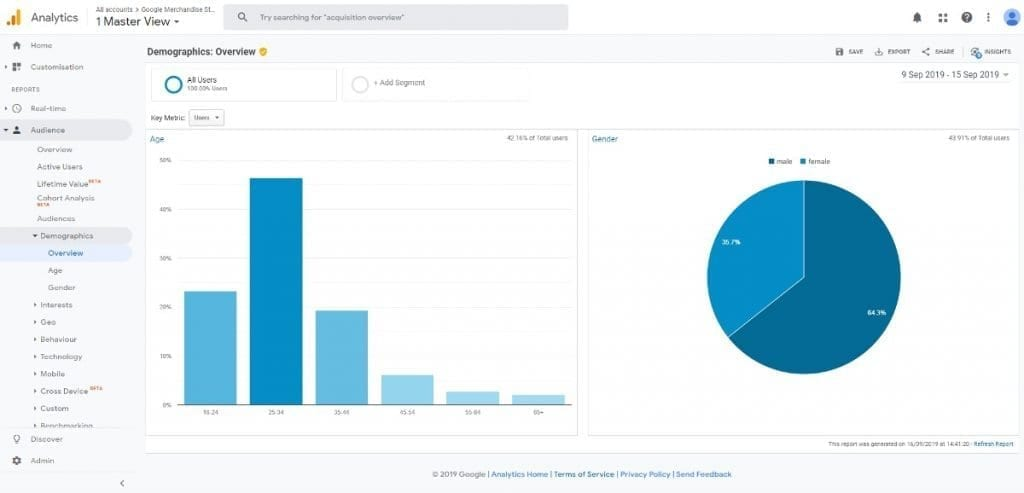
There’s a number of metrics that can help inform your ecommerce strategy here:
Taking all of this information into account can help you do things like:
The behavior reports show you what your site visitors are doing on your site. For example, you’ll have access to metrics like:
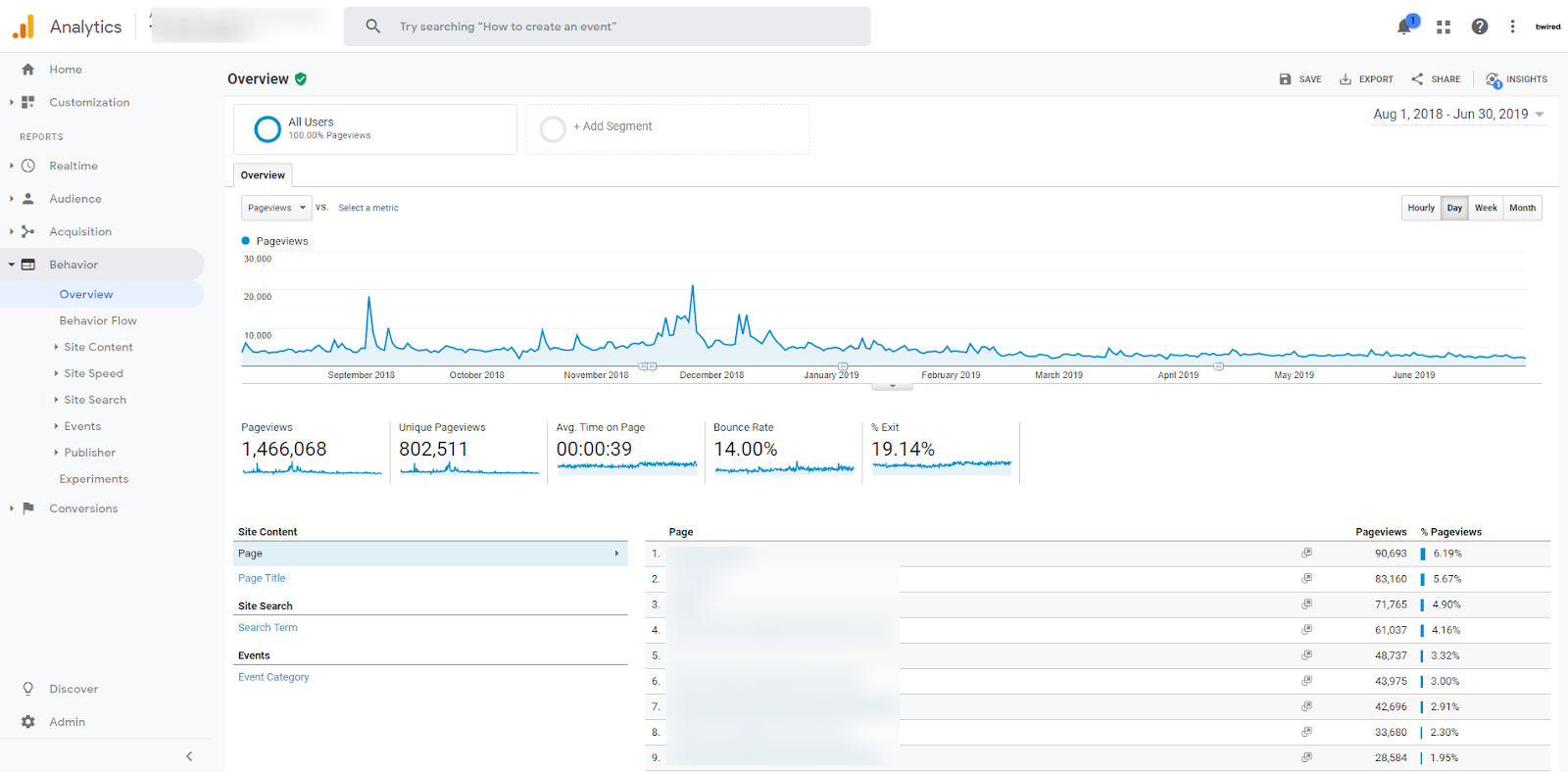
More advanced metrics like the behavior flow report lets you see the paths visitors regularly take on your website - from landing on your site to leaving.
Plus, there’s a bunch of useful site speed and technical metrics too. So, you can always make sure your site is loading quickly.
Using behavior reports, you can, for example, determine the effectiveness of your landing pages and make adjustments that lead to higher conversion rates.
Under conversions, you’ll find your eCommerce reports. While Shopify analytics are great, using Google Analytics allows you to go a step further.

Ecommerce tracking can help you discover things like:
As you start to make sales, conversion data will help you refine your ecom sales funnel. For example, analyzing the data might help you understand:
Obviously, one of the most important things to keep tabs on is your marketing campaigns.
Using Google’s campaign URL builder, you can quickly and easily track your campaign performance with a trackable URL.
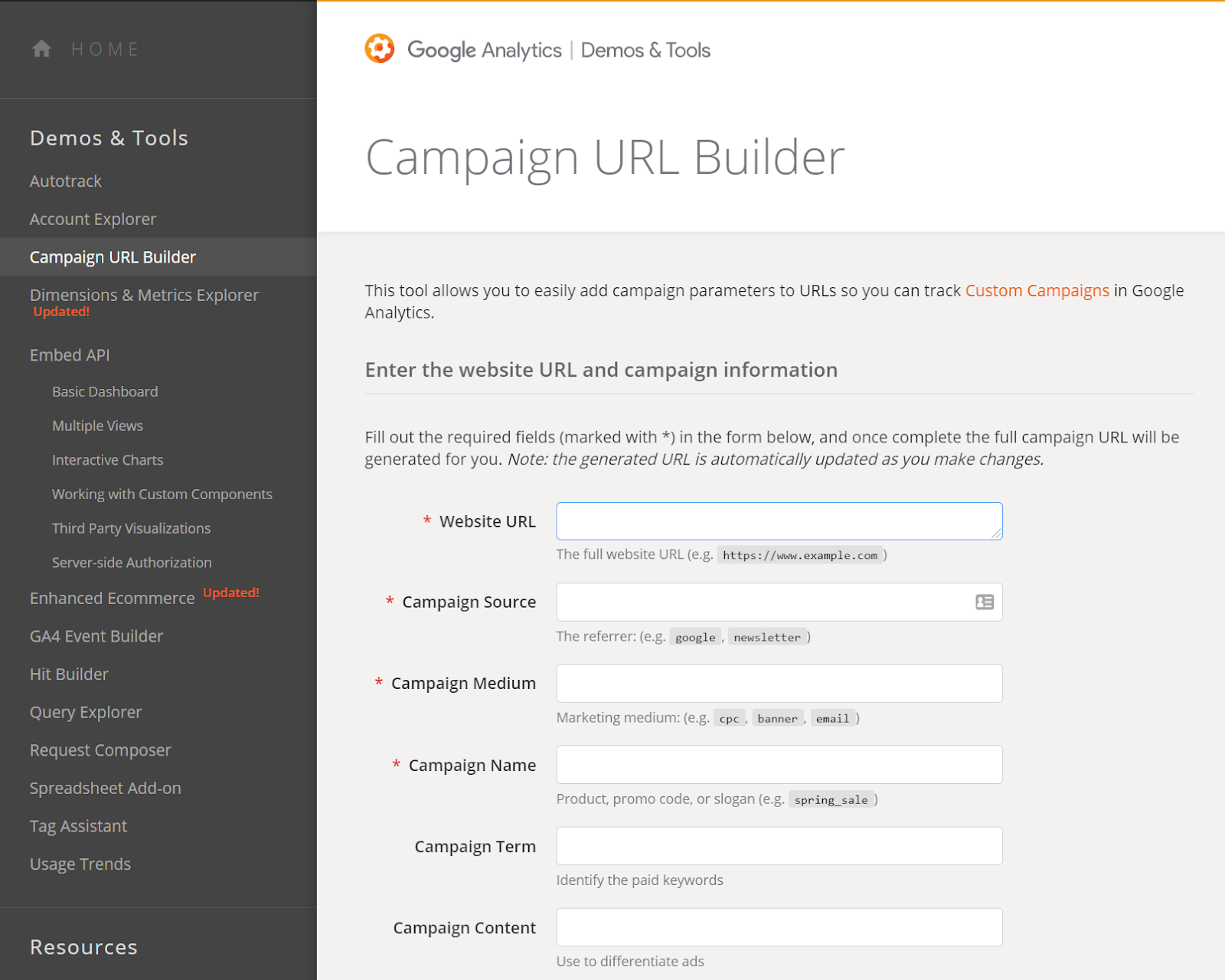
Just create a link by adding the relevant information, and Google will give you a trackable link in return.
When you use these URL’s for your marketing campaigns (email, search ads, etc.) Google Analytics will automatically recognize and tag the campaigns.
To view the data on how your campaigns are performing, all you need to do is navigate to Acquisitions > Campaigns.
Google Analytics can be intimidating for budding Shopify entrepreneurs. But the rewards are totally worth the effort needed to get set-up.
This guide is by no means comprehensive. However, the aim is to show you how to get started with Google analytics right away.
As I’m sure you know, getting started is often the hardest part. But starting often sets off a snowball effect that’ll transform you into a Google Analytics pro within a couple of weeks.
So, what are you waiting for? Go add Google Analytics to your store, and start collecting valuable data today!
Now over to you! Do you use Google Analytics for Shopify? What metrics do you find most helpful? Let us know in the comments below.
ProductReConvert has officially become Upsell.com. Here’s what’s changed, what stays the same, and what this means for your Shopify store.
 Marketing
You don’t need a huge budget to get your business or brand noticed. Our online marketing ideas for small businesses are designed to maximize ROI.
 Marketing
Personalizing your buyers journey is a fantastic way to boost conversions. Discover 6 simple ecommerce personalization tactics to try today.
Get eCommerce insights that convert
One email a month, practical strategies on conversion, AOV, retention, and customer experience.